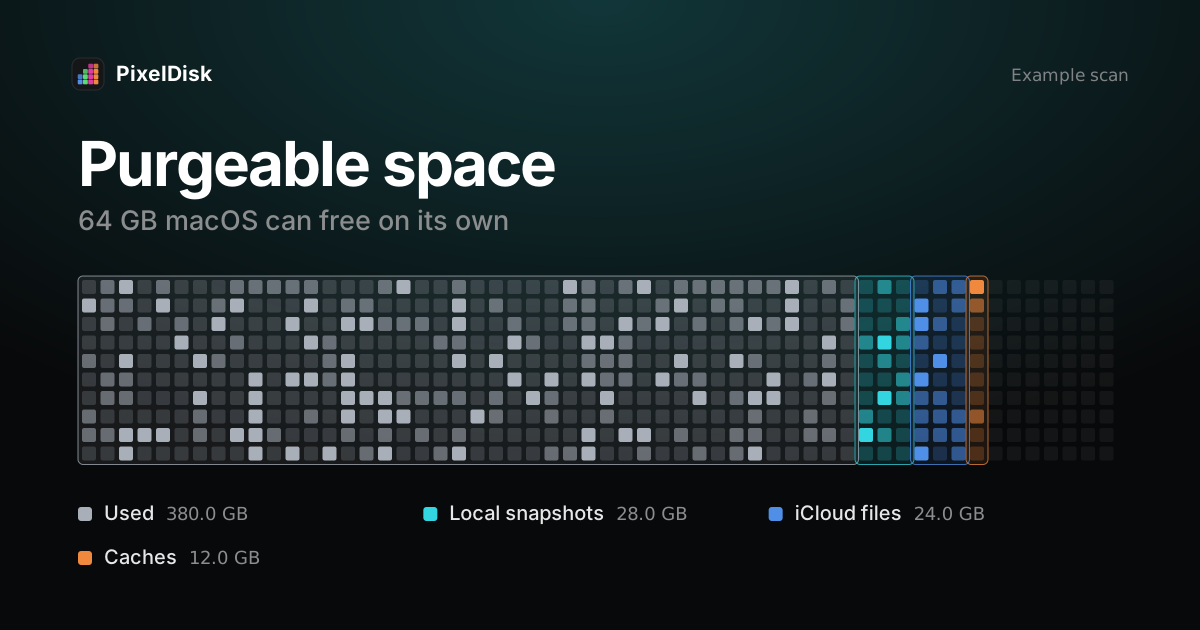
Purgeable space is disk space that macOS “can free up when needed by removing files from your computer” (Apple Support). Apple counts it as available, but it is still in use. It holds caches, copies of iCloud files and Time Machine local snapshots, which macOS clears on its own. Apple says you can’t remove purgeable files manually.
What purgeable space contains
Apple doesn’t publish one list. Its documents name these parts:
- Caches and logs. When space is needed, macOS “clears caches and logs that are safe to delete.” Apple lists temporary database files, interrupted downloads, staged macOS and app updates, and Safari website data (Apple Support).
- Files stored in iCloud. With Store in iCloud on, the Mac keeps only recently opened files when space is needed (Apple Support). The rest download again when you open them.
- Optimize Storage. It removes Apple TV movies and shows you already watched and keeps only recent email attachments (Apple Support).
- Time Machine local snapshots. “Your Mac counts the space used by snapshots as available storage” (Apple Support).
Snapshots don’t always clear on time. Howard Oakley found that macOS Tahoe 26.6.2 failed to purge a large snapshot on at least two occasions (The Eclectic Light Company).
Why “available” differs between Finder, Storage settings and Disk Utility
Each tool counts a slightly different thing:
| Tool | Where | What “available” means |
|---|---|---|
| Disk Utility | Applications › Utilities › Disk Utility | Shows Used, Purgeable and Free separately; available “can include both free space and purgeable space” (Apple Support) |
| Finder | Get Info on Macintosh HD, or View › Show Status Bar | One “available” figure; Get Info may name the purgeable part |
| Storage settings | System Settings › General › Storage | Used and available by category; slow to update and rounded |
Oakley calls Disk Utility the most consistent of the three, though not always right (The Eclectic Light Company). In Disk Utility, choose View › Show All Devices and select the volume to see the split.
The gap matters when an installer or app checks free space. If most of your “available” space is purgeable, macOS has to clear it first. When that doesn’t happen in time, the task can still report too little space.
Why free space didn’t grow after deleting files
There are three common reasons:
- The files are in the Trash. A deleted file’s space “doesn’t become available until you empty the Trash” (Apple Support).
- A local snapshot still holds them. A snapshot keeps the disk as it was when it was taken. Files you delete afterward stay in that snapshot until it is removed, up to 24 hours later (Apple Support).
- The file was an APFS clone. On APFS, a Finder duplicate is usually a clone that shares the original’s data on disk (The Eclectic Light Company). Deleting one copy frees little, because the other copy still uses that data.
How to make macOS release purgeable space
Start with the safe steps:
- Empty the Trash.
- Restart the Mac. Starting up in safe mode also clears certain system caches, which macOS creates again as needed (Apple Support).
- Clear local snapshots the Apple way. In Time Machine settings, turn off automatic backups, wait a few minutes for local snapshots to be deleted, then turn them back on (Apple Support).
- Check Disk Utility again. If purgeable space is still large, use Terminal.
With Terminal
List the local snapshots on the startup disk first. This only reads:
tmutil listlocalsnapshots /Warning: the next command deletes snapshots permanently, and you lose those local restore points. It asks macOS to free about 100 GB (the number is in bytes) by thinning snapshots. The last number is urgency, from 1 to 4:
sudo tmutil thinlocalsnapshots / 100000000000 4Warning: this also deletes permanently. It removes every local snapshot from one date, in the format the list above prints:
sudo tmutil deletelocalsnapshots 2026-11-15-093000The arguments come from man tmutil on macOS. These commands act on local snapshots only, not on backups stored on your Time Machine disk.
What not to do
Don’t delete folders in /private/var or /System to chase purgeable space; they are macOS. For more ways to free real space, see what to delete first when your startup disk is almost full and what System Data is.
Do it in PixelDisk
PixelDisk shows the startup disk as one bar of nine categories, so you see what actually uses the space. It shows Time Machine local snapshots and iPhone backups with their sizes (direct edition). In Safe mode, the default, your own files go to the Trash and caches and build files are deleted at once. Every removal is logged in History. Local snapshots are removed with tmutil, not through the Trash. Scanning is free; removing files is a $19 one-time purchase (pricing). The App Store edition is sandboxed and only sees your Home folder.
Sources
Checked November 2026.
- Apple Support, Get detailed information about a disk in Disk Utility on Mac: https://support.apple.com/guide/disk-utility/dskutl1005/mac
- Apple Support, Optimize storage space on your Mac: https://support.apple.com/guide/mac-help/sysp4ee93ca4/mac
- Apple Support, About Time Machine local snapshots: https://support.apple.com/en-us/102154
- Apple Support, Free up storage space on Mac: https://support.apple.com/en-us/102624
- The Eclectic Light Company, Copy, move and clone files in APFS, a primer: https://eclecticlight.co/2020/04/14/copy-move-and-clone-files-in-apfs-a-primer/
- The Eclectic Light Company, Aren’t snapshots purgeable?: https://eclecticlight.co/2026/08/24/arent-snapshots-purgeable/
man tmutil, macOS manual page (local)