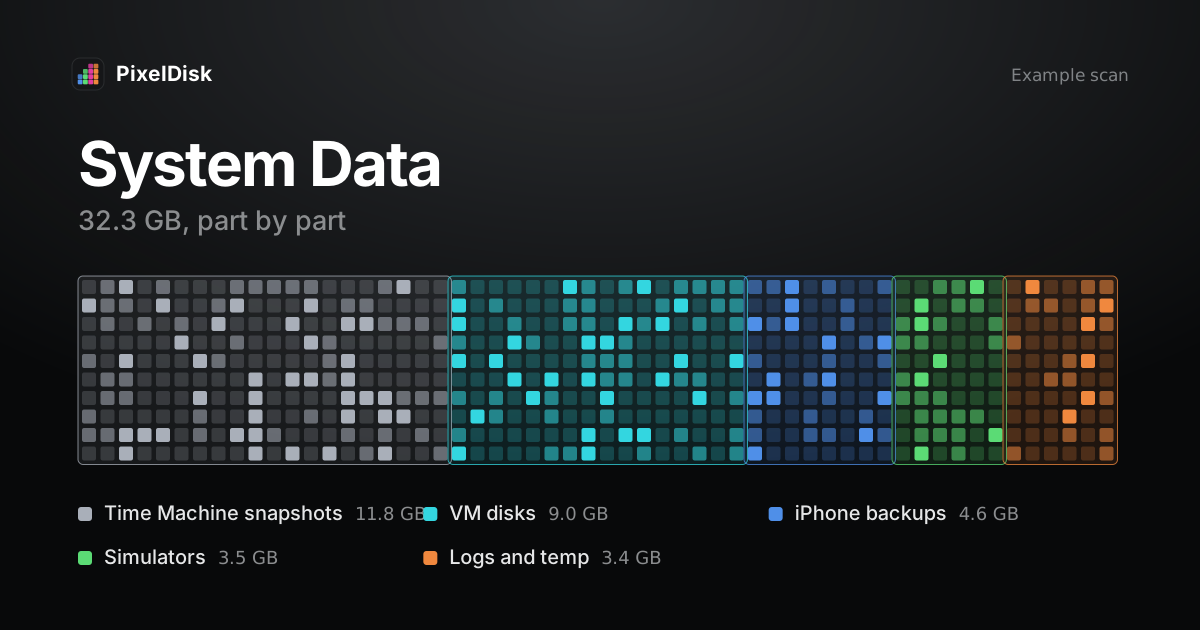
System Data is the part of Mac storage that does not fit a named category such as Apps, Photos or Documents. Apple calls it “a general category” for files that don’t belong elsewhere (Apple Support). It usually holds caches, Time Machine local snapshots, iPhone backups, Xcode and simulator files, and virtual machine disks. You see its size in System Settings > General > Storage.
What System Data actually contains
System Data is not one folder. It is the leftover after macOS sorts files into its named categories. Howard Oakley describes it as “a ragbag including all sorts of files” (The Eclectic Light Company). He also shows that files macOS fails to recognize, such as music outside the Music app, can land there.
The usual large parts are:
| Item | Typical location | Safe to remove? | What it costs |
|---|---|---|---|
| Time Machine local snapshots | APFS snapshots on the startup disk | Yes | You lose local restore points until the next backup |
| iPhone and iPad backups | ~/Library/Application Support/MobileSync/Backup |
Yes, if you have another backup | You can’t restore that device from it |
| App caches | ~/Library/Caches |
Mostly | Apps rebuild them, first launch is slower |
| Xcode DerivedData and simulators | ~/Library/Developer |
Yes | Next build is slower, runtimes download again |
| Docker and VM disks | ~/Library/Containers/com.docker.docker/... and others |
Only with care | Containers and images are lost |
| macOS itself | /System, /private/var |
No | The Mac stops working |
How to reduce System Data manually
Start with the items that are safe and cheap to rebuild. Skip anything you can’t name.
1. Check the real free space
Storage Settings is slow and rounds its numbers. Oakley recommends Disk Utility with View > Show All Devices, then selecting the container, to see accurate free and purgeable space (The Eclectic Light Company).
2. Remove Time Machine local snapshots
macOS keeps local snapshots of the startup disk for 24 hours and deletes them when it needs space (Apple Support). Apple’s own way to clear them is to turn off automatic backups, wait a few minutes, then turn them back on. In Terminal:
# list local snapshots on the startup disk
tmutil listlocalsnapshots /

# delete the snapshots from one date (format from the list above)
sudo tmutil deletelocalsnapshots 2026-11-15-093000
These commands come from man tmutil on macOS. A deleted snapshot can’t be restored.
3. Delete old iPhone and iPad backups
Backups live in ~/Library/Application Support/MobileSync/Backup/ (Apple Support). To delete one, connect the device, select it in the Finder sidebar, open the General tab, click Manage Backups, then right-click a backup and choose Delete. Apple warns that a deleted backup can’t be recovered.
4. Clean developer files
If you write code, this is often the largest part. Xcode keeps build products, device support files and simulator runtimes. See how to clear Xcode DerivedData and simulators safely. Docker Desktop keeps one large disk image, covered in why Docker.raw takes so much space. Local AI models live in hidden folders, covered in where Ollama, LM Studio and Hugging Face keep models.
5. Clear caches carefully
Apple says starting in safe mode clears certain system caches, which macOS creates again as needed (Apple Support). For app caches in ~/Library/Caches, quit the app first. Deleting a cache of an app that is running can corrupt its state.
# see which caches are largest
du -sh ~/Library/Caches/* 2>/dev/null | sort -h | tail -20
6. Empty the Trash
Files you delete stay on disk until you empty the Trash. Apple notes the space “doesn’t become available until you empty the Trash” (Apple Support).
What not to delete
Don’t delete anything under /System, /private/var/vm or /Library/Apple. Don’t remove folders in ~/Library because a guide said they are “junk”. Many hold app settings, mail or keychains. Don’t disable System Integrity Protection to clean up.
Do it in PixelDisk
PixelDisk shows the whole disk as one bar of nine categories, with System Data split out. The direct download edition breaks System Data into parts: Time Machine local snapshots, iPhone and iCloud backups, simulators, Docker and VM disks. Each part shows its size and cost. In Safe mode, the default, your own files go to the Trash and caches and build files are deleted at once. Snapshots, simulators and Docker data are removed with their own tools, not through the Trash. Every removal is logged in History. Scanning is free; cleaning is a $19 one-time unlock (pricing). The App Store edition is sandboxed and only sees your Home folder.
Sources
Checked November 2026.
- Apple Support, Free up storage space on Mac: https://support.apple.com/en-us/102624
- Apple Support, About Time Machine local snapshots: https://support.apple.com/en-us/102154
- Apple Support, Locate and manage backups of your iPhone, iPad, and iPod touch: https://support.apple.com/en-us/108809
- The Eclectic Light Company, What is System Data in Storage Settings?: https://eclecticlight.co/2025/02/11/what-is-system-data-in-storage-settings/
man tmutil, macOS manual page (local)