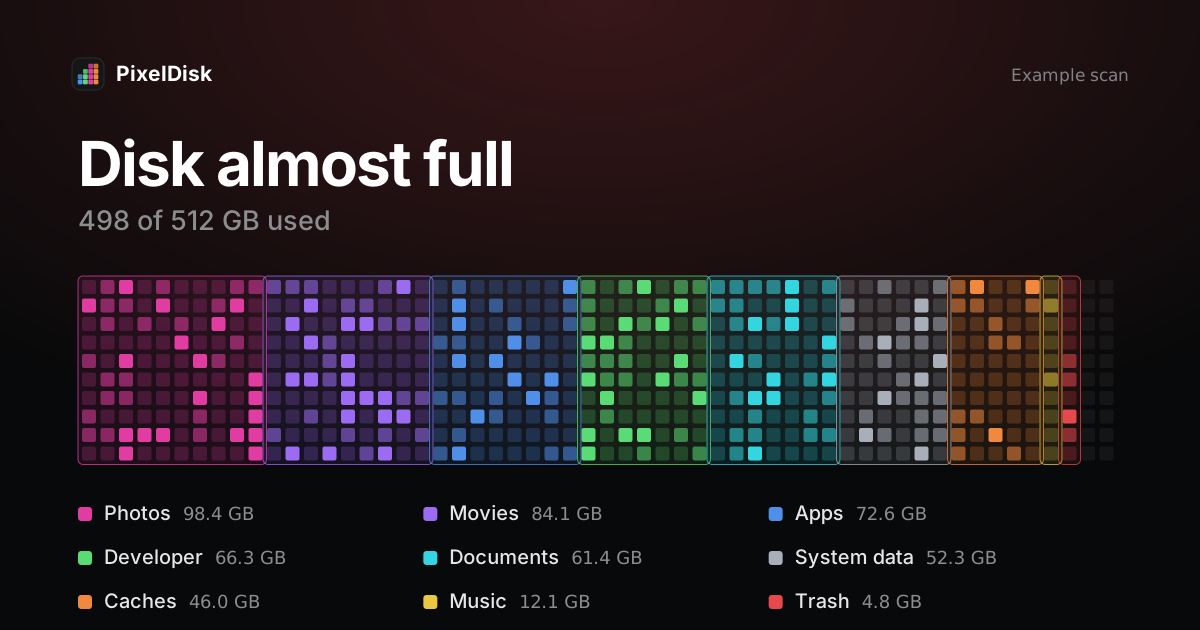
Startup disk almost full? Empty the Trash first. Apple notes that a deleted file’s space “doesn’t become available until you empty the Trash” (Apple Support). After that, old installers, caches, iPhone backups and Time Machine local snapshots usually free the most space at the lowest risk. Don’t delete system folders.
First, see what fills the disk
Don’t delete anything until you know which category is big. Three ways to look, from easiest to most precise:
- Storage settings. Choose Apple menu › System Settings, click General, then Storage (Apple Support). The bar shows used and available space by category. Click the info button next to a category to see and delete its files (Apple Support).
- Finder. Open a folder, choose View › as List, then View › Show View Options and turn on Calculate all sizes. Sort by Size to see the biggest folders first.
- Terminal.
dumeasures folders on disk. It reads files only and changes nothing:
# the 20 largest folders in your Home folder
du -sh ~/* ~/Library/* 2>/dev/null | sort -h | tail -20
If Storage settings shows a huge “System Data” bar, read what System Data is and how to reduce it next. Apple says you can’t manage that category from Storage settings (Apple Support).
What to delete first, in order
The order below weighs space freed against what it costs you. Stop when you have enough room.
| Order | What | Where | What it costs |
|---|---|---|---|
| 1 | Trash and Downloads | ~/.Trash, ~/Downloads |
Nothing, if you checked Downloads |
| 2 | Old installers | .dmg, .pkg, “Install macOS” apps |
You download them again if needed |
| 3 | Caches | ~/Library/Caches |
Apps rebuild them, first launch is slower |
| 4 | iPhone and iPad backups | ~/Library/Application Support/MobileSync/Backup |
You can’t restore from a deleted backup |
| 5 | Time Machine local snapshots | APFS snapshots on the startup disk | You lose local restore points |
| 6 | Developer files | ~/Library/Developer, Docker, model folders |
Next build is slower, things download again |
| 7 | Large videos and old projects | Movies, Documents, Desktop | Your own files: move them, don’t just delete |
1. Empty the Trash and sort Downloads
Downloads collects installers, zip files and duplicates you no longer need. Sort it by size and move what you don’t need to the Trash. Then empty the Trash. Emptying is permanent, so look inside first.
Storage settings can also empty the Trash for you. “Empty Trash automatically” removes items that have been in the Trash for more than 30 days (Apple Support).
2. Remove old installers
A .dmg or .pkg file is only the package an app came in. Once the app is installed and opens, the installer can go. “Install macOS” apps in Applications are also safe to remove after the upgrade is done. You can download them again.
3. Clear caches, carefully
Caches are files apps keep to load faster, and they come back. Apple says starting up in safe mode clears certain system caches, which are created again as needed (Apple Support). macOS also clears caches and logs that are safe to delete when space is needed (Apple Support).
For app caches in ~/Library/Caches, quit the app first. Delete the folder of one app, not the whole Caches folder.
4. Delete old iPhone and iPad backups
Device backups live in ~/Library/Application Support/MobileSync/Backup/ (Apple Support). Connect the device, select it in the Finder sidebar, click Manage Backups in the General tab, then delete the old ones. Apple warns that a deleted backup can’t be recovered. Keep at least one recent backup, or use iCloud Backup.
5. Clear Time Machine local snapshots
Time Machine keeps hourly snapshots of the startup disk for 24 hours (Apple Support). Your Mac counts them as available space and deletes them when space is needed. If that doesn’t happen fast enough, Apple’s method is to turn off automatic backups for a few minutes. The purgeable space guide covers the Terminal commands.
6. Clean developer files
If you write code, this is often the biggest win. Each tool has its own guide:
- Xcode build products, device support and simulators: how to clear Xcode DerivedData
- Docker Desktop’s single large disk image: why Docker.raw takes so much space
- Local AI models from Ollama, LM Studio and Hugging Face: where AI models are stored on Mac
7. Move large videos and old projects
Your own files are the last stop because you can’t download them again. Copy big videos and finished projects to an external drive, check the copy, then delete the originals. Apple’s Store in iCloud option keeps most files in iCloud and only recent ones on the Mac (Apple Support). It uses your iCloud storage plan (Apple Support).
What never to delete
/System,/Library/Apple,/private/varand/usr: these are macOS.- The inside of the Photos library. Delete photos from the Photos app, not from the
.photoslibrarypackage in Finder (Apple Community). - Whole folders in
~/Librarysuch as Mail, Keychains or Application Support. They hold your mail, passwords and app data. - Anything a guide calls “junk” but can’t name.
Don’t turn off System Integrity Protection to clean up.
Do you need an app for this?
Not always. Storage settings and the steps above handle most cases. A disk map helps when you can’t tell what a big folder is. GrandPerspective and OmniDiskSweeper are free and show where space goes. For a wider view, see do you need a Mac cleaner.
Do it in PixelDisk
PixelDisk shows the startup disk as one bar of nine categories and suggests the single biggest safe thing to clear. Each item says what removing it costs, such as “Downloads again”. In Safe mode, the default, your own files go to the Trash and caches and build files are deleted at once because they rebuild. Every removal is logged in History. iPhone backups, Time Machine local snapshots and simulators are cleaned in the direct edition only. Scanning is free; removing files is a $19 one-time purchase (pricing).
Sources
Checked November 2026.
- Apple Support, Free up storage space on Mac: https://support.apple.com/en-us/102624
- Apple Support, Change Storage settings on Mac: https://support.apple.com/guide/mac-help/change-storage-settings-on-mac-mchl3d437fbc/mac
- Apple Support, Optimize storage space on your Mac: https://support.apple.com/guide/mac-help/sysp4ee93ca4/mac
- Apple Support, About Time Machine local snapshots: https://support.apple.com/en-us/102154
- Apple Support, Locate and manage backups of your iPhone, iPad, and iPod touch: https://support.apple.com/en-us/108809
- Apple Community, How do I find a photo/video file in the Finder?: https://discussions.apple.com/thread/253672399