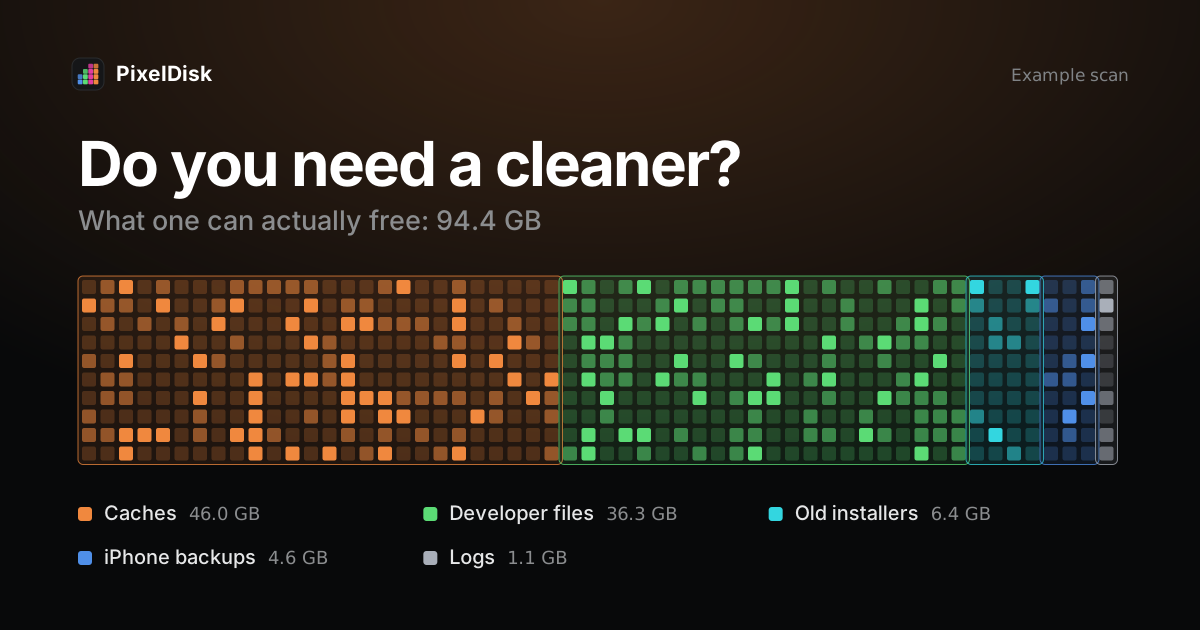
For most people, no. macOS already clears caches and logs “that are safe to delete” when space is needed, and can empty the Trash after 30 days on its own (Apple Support). It also manages memory without help. A cleaner app helps in a few specific cases: a nearly full disk you can’t explain, developer files, large forgotten files and uninstall leftovers.
What macOS already does for you
macOS does most routine cleanup without any app.
- Caches and logs. When space runs low, macOS clears caches and logs that are safe to delete. Apple lists temporary database files, interrupted downloads, staged macOS and app updates and Safari website data (Apple Support).
- Purgeable space. Some space shown as used can be freed by macOS on demand. See what purgeable space is.
- Local snapshots. Time Machine keeps local snapshots and deletes them when the Mac needs space (Apple Support).
- Safe mode. Apple says starting in safe mode clears certain system caches, which macOS creates again as needed (Apple Support).
Deleting caches by hand frees space for a short time. Apps build them again, and the first launch after is slower.
Memory cleaners don’t make a Mac faster
Low “free” memory on a Mac is normal. macOS keeps recently used files in unused memory to improve performance, and that cache stays until the memory is needed (Apple Support). When memory runs short, macOS compresses inactive apps to make room for active ones.
A “free up RAM” button throws that cache away. Apps then load more slowly until macOS fills it again.
To see whether your Mac is short of memory, open Activity Monitor and click Memory. Apple says a green Memory Pressure graph means the Mac “is using all of its RAM efficiently” (Apple Support). Yellow means it might eventually need more RAM. Red means it needs more RAM, and no app can fix that.
What you can do for free with macOS
Apple’s Storage settings cover most needs. Open Apple menu > System Settings > General > Storage (Apple Support).
- Use the recommendations. Store in iCloud keeps only recently opened files on the Mac. Optimize Storage removes watched Apple TV movies and shows. Empty Trash Automatically erases items that have been in the Trash for more than 30 days.
- Open a category. Click the Info button next to a category such as Documents. Sort by Size and delete files you don’t need (Apple Support).
- Browse folders by size. In Documents, click File Browser to see how much space each folder uses.
- Empty the Trash. Space returns only after the Trash is emptied (Apple Support).
- Delete old iPhone backups. In the Finder, select your device, click Manage Backups and delete old ones (Apple Support).
If you are comfortable with Terminal, this shows the largest folders in your Home folder. It only reads; it deletes nothing.
# list the 20 largest items in your Home folder and its Library
du -sh ~/* ~/Library/* 2>/dev/null | sort -h | tail -20
When a cleaner app helps
A cleaner is worth it when macOS’s tools stop giving answers.
- The disk is nearly full and you can’t see why. Storage settings may show a large System Data number with no files to click. A disk map shows where it goes. Start with Mac startup disk almost full and what System Data is.
- You write code. Xcode, Docker and local AI models keep large files in hidden folders that Storage settings doesn’t break down. See the guides on Xcode DerivedData, Docker.raw and Ollama models.
- You want to find large files fast. A disk map shows big folders as one picture across the whole disk.
- You uninstall apps often. Dragging an app to the Trash leaves its support files in
~/Library. An uninstaller finds them.
If none of these apply, you probably don’t need one. How-To Geek reaches the same answer: most of what cleaners do can be done with macOS or free apps (How-To Geek). Volunteers in the Apple Support Community say the same, often more bluntly (Apple Community).
What to look for if you use one
- It shows what it removes. Each item should have a name, a size and a plain reason it is safe. Avoid tools that only show a total.
- It uses the Trash or has an undo. Many cleaners delete permanently. Check the help pages before the first cleanup. See which Mac cleaners use the Trash.
- No scare tactics. Pop-ups that say your Mac is “infected” or “slow” are a warning sign. A good tool reports sizes, not fear.
- A price model you accept. Some tools are free, some are one-time, some are yearly subscriptions. Check the renewal price, not only the first year.
- A download you can trust. Get it from the developer’s site or the Mac App Store. Fake download sites for popular cleaners have spread malware. See is CleanMyMac safe.
Do it in PixelDisk
PixelDisk is one of the cleaner apps this page talks about, so weigh this section with that in mind. PixelDisk only frees disk space; it has no memory, speed-up or malware tools. It shows the disk as one bar of nine categories and labels each item with what removing it costs. In Safe mode, the default, your own files go to the Trash, while caches and build files are deleted at once because they rebuild. Every removal is logged in History. Scanning is free; cleaning is a $19 one-time unlock (pricing). Simulators, Docker and VM disks are in the direct edition only.
For other tools, see the comparisons and best Mac disk cleaners.
Sources
Checked November 2026.
- Apple Support, Optimize storage space on your Mac: https://support.apple.com/guide/mac-help/optimize-storage-space-sysp4ee93ca4/mac
- Apple Support, Find and delete files on your Mac: https://support.apple.com/guide/mac-help/find-and-delete-files-on-your-mac-syspf5a64aa6/mac
- Apple Support, Free up storage space on Mac: https://support.apple.com/en-us/102624
- Apple Support, About Time Machine local snapshots: https://support.apple.com/en-us/102154
- Apple Support, Locate and manage backups of your iPhone, iPad, and iPod touch: https://support.apple.com/en-us/108809
- Activity Monitor User Guide, View memory usage: https://support.apple.com/guide/activity-monitor/view-memory-usage-actmntr1004/mac
- Activity Monitor User Guide, Check if your Mac needs more RAM: https://support.apple.com/guide/activity-monitor/check-if-your-mac-needs-more-ram-actmntr34865/mac
- How-To Geek, Do you need a cleaner app for your Mac?: https://www.howtogeek.com/805940/do-you-need-a-cleaner-app-for-your-mac/
- Apple Community, Mac apps to “cleanup your computer”?: https://discussions.apple.com/thread/251263555